
Design document layouts
Use the document designer to decide how invoices, orders, credit notes and vouchers look on paper, and which layout each document type prints with.
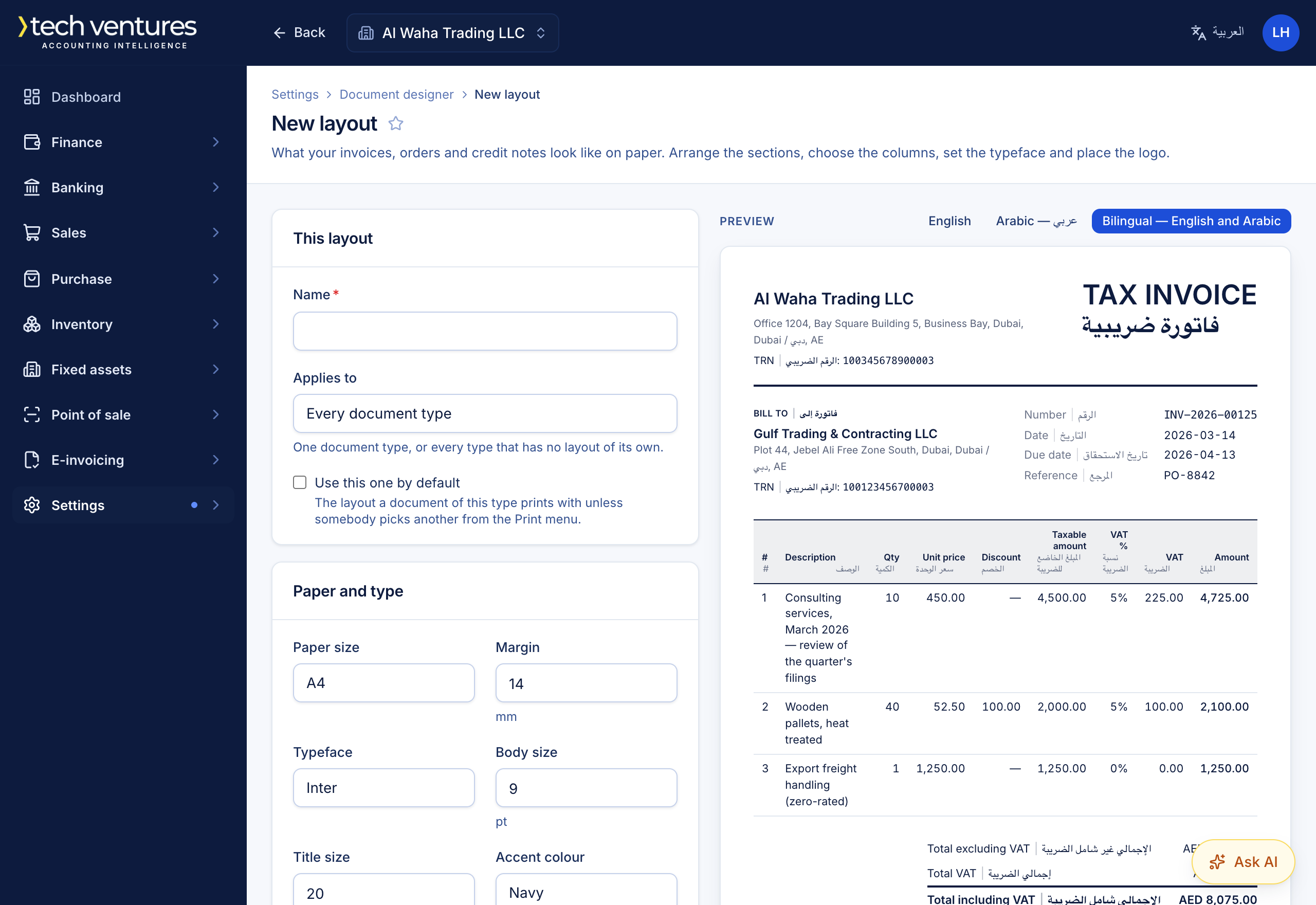
Every document prints with a standard layout until you design one of your own. The document designer lets you arrange the sections, choose and rename the columns, set the paper, typeface and accent colour, and place the logo, with a live preview of a sample document beside it.
Before you start
- You are the company's Owner or an Admin to save, duplicate or delete a layout.
- Upload the logo and set the bank and footer under Logo and print-outs first; the designer places what is set there.
Create a layout
- Go to Settings › Document designer and choose New layout.
- Under Which document do you want to design?, choose the document: quotation, order, invoice, credit note or return order on the sales side; requisition, order, invoice, credit note or return order on the purchase side; payment or receipt voucher; stock adjustment or transfer. Or choose Or design one layout for every document type.
- The designer opens with the standard layout and a sample of that document in the Preview. Change what you need (see the table below).
- Under This layout, name it, check Applies to, and tick Use this one by default if documents of that type should print with it.
- Choose Save.
To start a second layout from an existing one, open it and choose Duplicate. Back to the standard layout undoes your changes in the designer.
What you can change
| Section | What it controls |
|---|---|
| Paper and type | Paper size, Margin, Typeface, Body size, Title size and the Accent colour (Navy, Royal blue, Slate or Black) used for rules and headings. |
| Logo and letterhead | Where the logo sits (left, centre, right or No logo) and its height; where the Document title goes; whether to show your address, TRN, and phone and email; a rule under the letterhead. |
| Customer and particulars | Whether to show the customer's or vendor's address, TRN and contact details; Swap the two sides. |
| Fields from your data | Drag a field (reference, due date, currency, cost centre, project, their TRN, your TRN and others) onto the particulars. A field with nothing to print is left out. |
| Columns | Show, hide, reorder and rename the line columns (item code, description, unit, quantity, unit price, discount, taxable amount, VAT rate, VAT, amount), set alignment and width, tint the heading row or every other row, and pad the table with Blank rows. |
| Totals | Which side of the page, and Spell out the total in words (English only). |
| Sections | The order the sections print in: letterhead, particulars, lines, totals, reverse-charge notice, notes, terms, bank details, signature lines, footer. Show or hide each. |
| Your own fields | A label and a value printed with the particulars, such as a delivery note number or a salesperson. |
Which layout a document prints with
- A layout made for one document type, ticked Use this one by default, is what that type prints with unless somebody picks another from the Print menu on the document.
- A layout for Every document is used by any type that has no layout of its own.
- With no layout, a document prints with the standard one.
Delete a layout
Open it and choose Delete layout. Documents already printed are unaffected; anything printed from then on falls back to the standard layout.
Related articles
- Logo and print-outsUpload the company logo and set what every printed or PDF document carries, including the bank details customers pay into.
- Company settingsThe company's name, legal name, TRN, trade licence, address and contact details, and whether documents must be approved before posting.
- Create a sales invoiceBill a customer for goods or services, post it to receivables, income and VAT, and send it as a UAE e-invoice.