
Create a sales invoice
Bill a customer for goods or services, post it to receivables, income and VAT, and send it as a UAE e-invoice.
A sales invoice bills a customer. Posting it records what the customer owes you, the income you earned and the output VAT you collected, all in one journal entry. If it sells stock items, the same posting takes the goods out of stock and charges their cost to cost of sales. When e-invoicing is switched on for your company, the invoice is validated and filed with the e-invoicing portal as part of posting.
You can write an invoice from scratch, or make it from a sales quotation or a sales order so nothing is typed twice.
Before you start
- The customer exists, with their TRN if they are VAT-registered. You can also add one from the invoice with New customer in the customer list.
- The items you sell exist, or you know which income account each line goes to.
- Your tax codes are set up. New companies get the UAE codes during set-up.
- You hold the Owner, Admin, Accountant or Sales role. Any of these can save and post a sales invoice. Approver, Viewer and Auditor can open it but not enter one.
Create the invoice
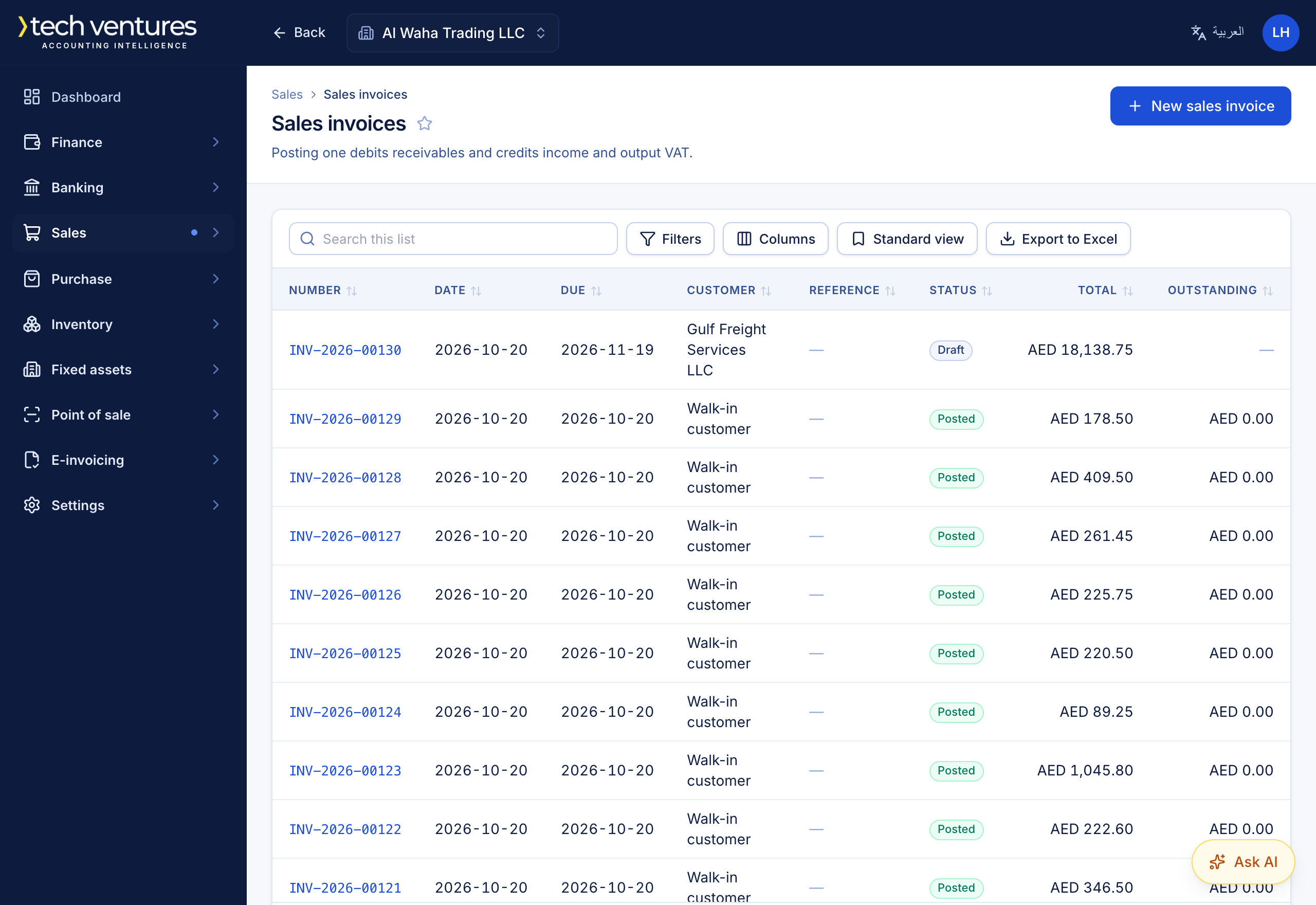
- Go to Sales › Sales invoices and choose New sales invoice.
- Choose the Customer. Their currency fills in, the Due date is worked out from their payment terms, and the E-invoicing section takes the customer's defaults. For a customer outside the UAE, lines on your default tax code switch to the zero-rated code.
- Check the Date. It decides the accounting period the invoice posts into and the VAT return it lands on.
- Add a line for each thing you are billing. The line Type is Item by default: choose the item in No. and its description, price, income account and tax code fill in. To bill straight to an income account, set Type to G/L Account. Enter Qty and Price, and a Disc % if you give a discount.
- Check the Tax code on each line. It comes from the item, or from the default tax code in Sales settings. Change it for a zero-rated or exempt line.
- For a stock item, check the Location the goods leave from. It starts on your default location.
- Optionally choose a Cost centre at the top: it defaults onto every line. Each line can carry its own cost centre, Project and any dimensions your company uses.
- Review the totals: Subtotal, VAT and Total.
- Choose how to finish:
- Save draft keeps it unposted. Nothing reaches the ledger and you can keep editing.
- Save and preview saves the draft and opens the printed layout. A draft prints marked as not approved.
- Save and post saves it and posts it now.
If posting is refused — the period is closed, the customer is over their credit limit, the portal rejected the e-invoice — the invoice is kept as a draft and opens on its own page with the reason. Put it right and choose Post to the ledger.
Important
A posted invoice cannot be edited. It is a tax document, and the ledger keeps it exactly as it was posted. To change one, issue a sales credit note and, if needed, a new invoice.
Fields
| Field | What to enter |
|---|---|
| Customer | Who you are billing. Choosing them fills in the currency, the due date and the e-invoicing defaults. |
| Date | The invoice date. It must fall in an open period. |
| Due | Worked out from the customer's payment terms; the hint under it shows their days. You can change it, but not to a date before the invoice date. Drives the ageing report and reminders. |
| Currency | Defaults to the customer's currency. |
| Exchange rate | Shown for a foreign currency. Left as it is, the Central Bank rate for the date is used; type over it to use your own rate for this invoice. |
| Reference | The customer's purchase order number or your own reference. Printed on the invoice. |
| Cost centre | Optional. Shown when your company has cost centres. Defaults onto every line. |
| Narration | A note for the journal entry. If left empty, the entry is titled with the invoice number. |
| Lines: Type | Item, G/L Account, Fixed Asset, Project or Comment. A comment line is words only and posts nothing. A project line posts to your first income account unless you choose one. |
| Lines: No. | The item, account, asset or project the line is for. |
| Lines: Description | Filled from the item; change it freely. It prints on the invoice. |
| Lines: Qty, Price, Disc % | The amounts. Net = quantity × price, less the discount percentage. A quantity below zero is refused — use a credit note to take something back. |
| Lines: Tax | The tax code for the line. VAT is calculated from it. |
| Lines: Location | For stock items only: where the goods leave from. |
| Lines: Defer (months) | Optional. Spreads the line's income over later months instead of recognising it now. See Deferrals. |
| E-invoicing | Send this document through e-invoicing, ticked unless the customer is kept off e-invoicing, and the Transaction type, Invoice type, Payment type, Payment account (IBAN) and Prepaid amount. They start from the customer. See Send an e-invoice. |
The panel beside the lines shows the chosen item (price, stock on hand, last price to this customer) and the customer (terms, credit limit, outstanding, overdue). Use Hide side panel when you need the room.
What it posts
For an invoice of AED 1,000.00 plus 5% VAT:
| Account | Debit | Credit |
|---|---|---|
| Accounts receivable (the customer) | 1,050.00 | |
| Sales income (from each line) | 1,000.00 | |
| VAT output | 50.00 |
The receivable goes to the control account of the customer's customer group. Each income line carries its cost centre, project and dimensions, so profit by cost centre and project comes straight from the posted lines.
If a line sells a stock item, the same entry also moves the goods out at what the books hold them at. If those goods cost AED 600.00:
| Account | Debit | Credit |
|---|---|---|
| Cost of goods sold | 600.00 | |
| Inventory | 600.00 |
The stock movement is written in the same step, so the inventory account and the stock valuation agree. If there is not enough stock, posting is refused unless your inventory settings allow stock to go negative.
A reverse charge sale posts no VAT: the buyer accounts for it. A foreign-currency invoice posts at its exchange rate, and any difference when it is paid is posted with the receipt as a realised exchange difference. A final invoice made from an order that has paid prepayments also takes them off in this entry — see Sales prepayments.
Statuses
| Status | Meaning |
|---|---|
| Draft | Saved, not posted. Editable. Nothing in the ledger. |
| Awaiting approval | Sent for approval, under an approval workflow or because the company requires approval before posting. |
| Approved | Approved and ready to post. It can no longer be edited. |
| Posted | In the ledger. Read-only. The Settlement panel shows what is still due. |
| Reversed | Undone by a mirror entry. Both entries stay in the books, it owes nothing, and it is left out of the VAT return and every other report. |
| Cancelled | Called off with Cancel draft before it was posted. It keeps its number and is never posted. |
When sales invoices have an approval workflow, or your company requires approval before posting, Save and post is refused with a message. The draft has Send for approval in the box under its form. Whoever made the invoice cannot approve it. Without a workflow, an approver can Approve it or Send back to draft for its maker to put right; under a workflow, the approver uses Approve or Reject.
Send it to the customer
Once the invoice is posted, use Print on its page to print it or save it as a PDF, in English, Arabic or both, and Send to email the customer a link to it. The Sent panel then shows whether it was delivered and when it was opened. A draft cannot be sent. The terms from Terms printed on sales invoices in Sales settings print under the lines.
Correct or cancel it
- A mistake on an unposted invoice: open the draft and edit it.
- Not wanted at all, before posting: choose Cancel draft in the box under the form and confirm. Once it is Awaiting approval or Approved, Cancel draft is in the footer of its page. The invoice keeps its number, shows Cancelled and is never posted. The order, quotation, work order, contract, contract billing period or rent instalment it was raised from can be invoiced again.
- Bill less, or the customer returned goods: post a sales credit note against the invoice, then set it against the invoice with Apply a credit. This is the right answer for anything already sent to the customer, and the only one for an e-invoice: a filed e-invoice cannot be withdrawn from the portal.
- Posted in error: choose Reverse on the invoice. A mirror entry is posted, any stock comes back, and the invoice is marked reversed. An invoice that has a receipt, or a credit note or advance applied to it, cannot be reversed until that is reversed first. Reversing also frees what the invoice billed — an order, a work order, a contract, a contract billing period or a rent instalment — so it can be invoiced again. Paid prepayments the invoice deducted are released for another invoice, and its deferrals are reversed with it; if a deferral month has been released, reverse that release first (see Deferrals).
- Filed as an e-invoice: an invoice whose e-invoice was sent to or delivered by the portal cannot be reversed. Its page shows a note in place of Reverse; correct it with a credit note. An e-invoice that failed or was rejected does not stop a reversal.
Related reports
- Receivables ageing — what each customer owes, by age.
- Sales register — every invoice and credit note in a period.
- VAT 201 return — output VAT from posted invoices.
Related articles
- Create a sales credit noteReduce what a customer owes for goods returned or a charge reduced, reverse the income and VAT, and bring returned stock back.
- Create a sales orderRecord what a customer has committed to buy, bill part of it in advance if you need to, and turn it into the sales invoice.
- Record a receiptRecord money received from a customer into a bank or cash account, settle their invoices with it, and hold anything extra on account.
- Send an e-invoicePost a sales invoice or credit note through the e-invoicing portal, which validates and files it before the journal entry is written.