
Receive e-invoices
See the e-invoices your suppliers send you, match them to vendors and items, and turn each into a draft purchase invoice to check and post.
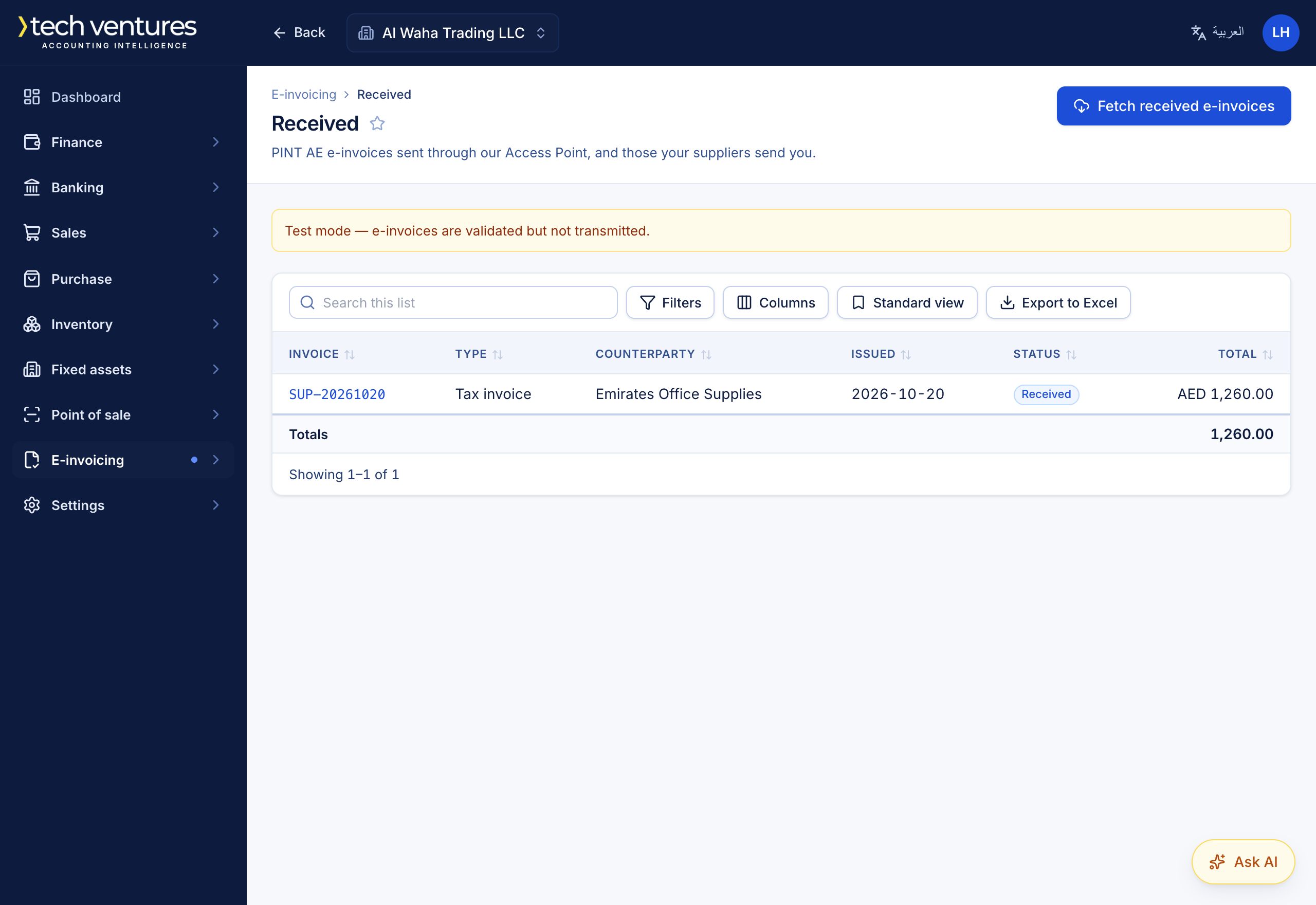
Your suppliers' e-invoices reach you through their Access Point and the Tech Ventures portal, addressed to your TIN. They arrive under Received without you asking: the portal tells the app as each one comes in, and the app also catches up on anything missed. Each one is matched to a vendor and its lines to your items, and then becomes a draft purchase invoice (or purchase credit note) for you to check and post.
A received e-invoice posts nothing by itself. The purchase invoice you post from it does.
Before you start
- E-invoicing is enabled, and the Webhook secret and Delivery URL for the portal are set up under Configure E-invoicing.
- Your vendors carry their TRN or TIN, or their Trade licence number. Vendors are matched by these, never by name.
- Your items carry the supplier's item code or the HS code, if you want lines matched to items.
- The company has e-invoicing documents left. Each e-invoice received uses one; when none are left, new documents wait in the portal until a pack is bought.
- You hold the Accountant role or higher.
Receive and enter an e-invoice
- Go to VAT › E-invoicing › Received (or E-invoicing › Received). To check for anything new straight away, choose Fetch now.
- Open the e-invoice. The page shows the supplier under Vendor, the invoice details under Document, the supplier's Lines and totals, and the Attachments, including the original XML.
- If the page shows Needs attention, deal with each reason (see below).
- Under Map lines to items, check which of your items each supplier line belongs to, and change any that are wrong. The choice is remembered for this vendor, so their next invoice arrives mapped.
- Choose Save mapping and create the purchase invoice, or Create a draft bill. A draft purchase invoice is created, dated and numbered as the supplier's invoice, with the supplier's number as its reference.
- Open the draft from Open the document, check the accounts, tax codes and project on each line, and post it.
A supplier's credit note becomes a draft purchase credit note, linked to the purchase invoice whose reference it names. If that invoice is not on file, the draft's narration says so.
Note
The draft is worked out with your own tax codes and rounding. If its total or VAT differs from what the supplier stated, the status trail and the draft's narration show both figures. Check the lines and tax codes before posting.
Needs attention
A received e-invoice that cannot become a draft by itself is listed under Needs attention on the Received page. Nothing has been created for it.
| Reason | What to do |
|---|---|
| No vendor found for tax number, Peppol address or registration number | Choose Create vendor to add one from the e-invoice's details, or pick an existing one under Match to a vendor and choose Match and create the purchase invoice. The vendor learns the supplier's identifiers, so the next one matches by itself. |
| Line n: no item found | Map the line under Map lines to items, or add the code to the item and choose Check again. |
| The lines add up to a different amount than the document states | The supplier's document does not agree with itself. Ask the supplier for a corrected one. |
| Tax-exclusive amount plus VAT is not the stated total | As above. |
| The portal could not read the attached file | Shown for review only; it does not stop the draft. Check the file in the portal. |
An e-invoice addressed to another company, by its TIN or TRN, is not imported.
Statuses
| Status | Meaning |
|---|---|
| Received | Arrived. Not yet a purchase invoice. |
| Draft bill created | A draft purchase invoice was made from it. |
| Bill posted | That purchase invoice has been posted. |
The list also shows ASP response status and FTA — the answers from your supplier's Access Point and the FTA on the supplier's filing — each Not known yet until they arrive.
Fields
| Field | What it shows |
|---|---|
| Vendor: Name, Address, Tax registration (TRN), Trade licence, Peppol address | The seller as the e-invoice names them. |
| Document: Invoice date, Due date | A due date before the invoice date is flagged. |
| Currency, Exchange rate | As sent by the supplier. |
| Total discount, Prepaid, Amount due | The supplier's own figures. |
| Payment type, Payment terms, Buyer reference | As sent by the supplier. |
| Lines | Item, quantity, unit price, net, VAT %, VAT and total for each line, with the totals excluding VAT, VAT and total. |
| Attachments | The original XML and any files the supplier attached. |
Related
- E-invoicing reconciliation lists received e-invoices not yet entered, and purchase invoices with no e-invoice behind them.
Related articles
- Create a purchase invoiceRecord a vendor's bill and post it to expenses or inventory, input VAT and payables, including reverse charge on imported services.
- Add a vendorSet up a supplier with their TRN, currency, payment terms and vendor group, so their bills and payments post to the right payable account.
- E-invoicing reconciliationFind sales documents posted but not sent to the FTA, purchase invoices with no e-invoice, and received e-invoices not yet entered, and compare their VAT with the return.
- Set up itemsAdd the goods and services you buy and sell, with their default prices, accounts and tax code, and choose which goods have their stock followed.