
Create a purchase invoice
Record a vendor's bill and post it to expenses or inventory, input VAT and payables, including reverse charge on imported services.
A purchase invoice records a vendor's bill. Posting it records what you owe the vendor, the expense or the goods you bought, and the input VAT you can reclaim, all in one journal entry. It is the document that puts a purchase in the books; the purchase order before it posts nothing.
You can enter an invoice from scratch, convert it from a purchase order, or receive it as an e-invoice: a bill that arrives through e-invoicing is imported as a draft purchase invoice for you to check and post.
Before you start
- The vendor exists, with their TRN if they are VAT registered.
- Each item you buy has an expense account, or is an item whose stock you keep. Otherwise, use G/L Account lines.
- Your tax codes are set up. New companies get the UAE codes, including RC — Reverse charge.
- You hold the Accountant or Purchasing role, or higher, to post.
Create the invoice
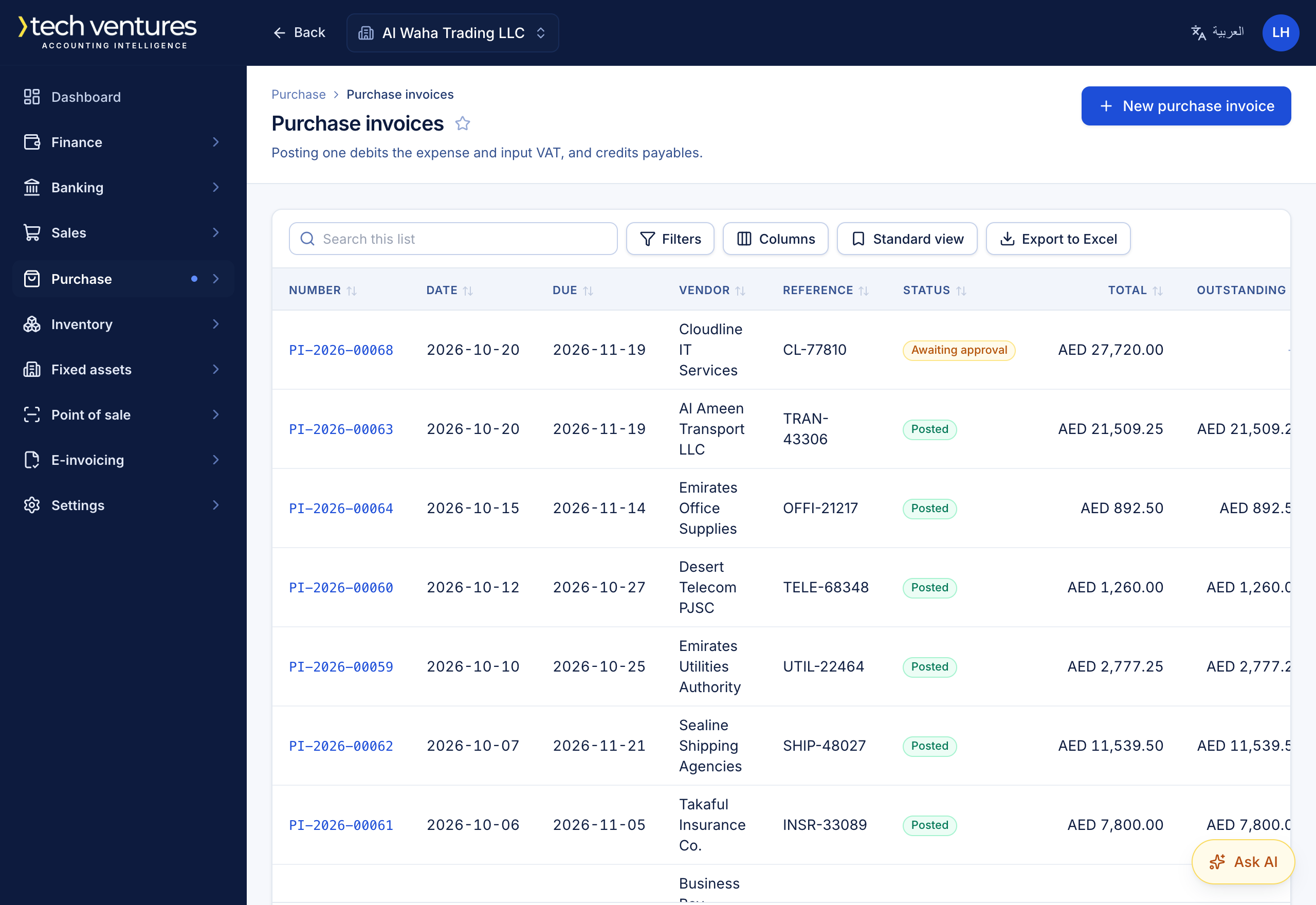
- Go to Purchase › Purchase invoices and choose New purchase invoice.
- Choose the Vendor. Their currency and payment terms fill in.
- Enter the vendor's own invoice number as the Reference. If purchase settings require it, the invoice cannot be saved without one.
- Check the Date. It decides the accounting period and the VAT return the invoice falls in.
- Add a line for each thing billed. Choose the line Type:
- Item posts to the item's expense account, or to inventory for an item whose stock you keep. Choose the Location the goods arrived at, and the Lot no. and expiry if the item is tracked by lot or serial.
- G/L Account posts to the expense account you choose.
- Fixed Asset posts to the cost account of the asset's category.
- Project posts to the default expense account, tagged to the project.
- Additional cost is freight, customs or insurance, spread over the goods on the invoice by value or by quantity.
- Comment is words only.
- Enter Qty, Price and any Disc %, and check the Tax code.
- To spread a cost such as a year's insurance over later months, enter the months under Defer (months) (2 to 120) and the First release. See deferrals.
- Review Subtotal, VAT and the total.
- Finish with Save draft, Save and preview or Save and post.
If posting is refused — a closed period, a budget that blocks, an approval still needed — the invoice is kept as a draft and the reason is shown on it.
Important
A posted invoice cannot be edited. Correct it with a purchase credit note, or reverse it if it was posted in error.
Fields
| Field | What to enter |
|---|---|
| Vendor | Who billed you. New vendor in the list adds one. |
| Date | The invoice date. It must fall in an open period. |
| Due | Filled from the vendor's payment terms. Drives payables ageing. |
| Currency, Exchange rate | Defaults to the vendor's currency. A foreign-currency bill is converted at the Central Bank rate for the date unless you type your own. |
| Reference | The vendor's invoice number. |
| Cost centre | Optional. Defaults onto every line. |
| Narration | A note for the journal entry. If empty, the entry is titled with the invoice number. |
| Lines: Type and No. | What was bought: item, expense account, fixed asset, project, additional cost or comment. |
| Lines: Description, Qty, Price, Disc %, Tax | The amounts. Net = quantity × price, less the discount. |
| Lines: Location, Lot no. | For items whose stock you keep. |
| Lines: Defer (months), First release | Optional. Moves the cost to a deferral account and releases it month by month. |
What it posts
For a bill of AED 1,000.00 plus 5% VAT on an expense line:
| Account | Debit | Credit |
|---|---|---|
| Expense account (from the line) | 1,000.00 | |
| VAT input | 50.00 | |
| Accounts payable (the vendor) | 1,050.00 |
The payable goes to the control account of the vendor's vendor group, or to accounts payable if they have none. Each expense line carries its cost centre, project and dimensions.
Goods whose stock you keep debit the inventory account instead of an expense, and the goods are added to stock at the location on the line. An Additional cost line is added to the cost of those goods, so it also debits inventory. An additional cost on an invoice with no such goods is refused.
Reverse charge on imported services. When you buy a service from a vendor outside the UAE, you account for the VAT yourself. Use the RC — Reverse charge tax code on the line. For a consultancy bill of AED 10,000.00 from a vendor abroad:
| Account | Debit | Credit |
|---|---|---|
| Consultancy expense | 10,000.00 | |
| VAT input | 500.00 | |
| VAT output | 500.00 | |
| Accounts payable (the vendor) | 10,000.00 |
The vendor is owed only AED 10,000.00, which is the total the invoice shows. The two VAT lines cancel in the books but appear separately on the VAT 201 return. See reverse charge.
A final invoice made from a purchase order with paid prepayments also takes those prepayments off in the same entry. See purchase prepayments.
A foreign-currency invoice posts in its currency and in base currency. Any difference when it is paid is posted by the payment as a realised exchange difference.
Approval and budgets
- If purchase invoices have an approval workflow, or the company requires approval before posting, the invoice must be Approved before it posts. Choose Save and post: posting is refused with a message that approval is needed, and the draft has Send for approval in the box under its form. Once it is approved, Post to the ledger posts it. Without a workflow, an approver can Approve it or Send back to draft; under a workflow, the approver uses Approve or Reject.
- A purchase budget set to Block refuses to post an invoice that would take an account over its budget. One set to Warn shows the overrun on the invoice and lets it post.
Statuses
| Status | Meaning |
|---|---|
| Draft | Saved, not posted. Editable. Nothing in the ledger. |
| Awaiting approval | Sent for approval, waiting for an approver. |
| Approved | Approved and ready to post. |
| Posted | In the ledger. Read-only. Shows what is still outstanding. |
| Reversed | Undone by a mirror entry. Both entries stay in the books and it owes nothing. |
| Cancelled | Called off with Cancel draft before it was posted. It keeps its number and is never posted. |
Pay it
Tick one or more posted invoices on the Purchase invoices list and choose Pay these to open a payment already filled in for them. A posted invoice also shows its Settlement: what has been paid against it and what is still outstanding. Use Apply a credit there to set a credit note, or money paid to the vendor on account, against it. Applying posts nothing; it records which bill the credit belongs to.
Correct or cancel it
- A mistake on a draft: open it and edit it.
- Not wanted at all, before posting: choose Cancel draft in the box under the form and confirm. Once the invoice is Awaiting approval or Approved, Cancel draft is in the footer of its page. The invoice keeps its number, shows Cancelled and is never posted. The purchase order it was made from can be invoiced again.
- The vendor reduced the bill, or goods went back: post a purchase credit note against the invoice.
- Posted in error: open the invoice and choose Reverse. A mirror entry is posted and the invoice is marked reversed. An invoice that has been paid cannot be reversed until the payment against it is reversed first; the invoice names the payment. Reversing frees the purchase order it was made from, and paid prepayments it deducted are released for another invoice.
Related reports
- Purchase register — every posted invoice and credit note in a period.
- Payables ageing — what is owed to each vendor, by age.
- VAT 201 return — input VAT and reverse charge from posted invoices.
Related articles
- Create a purchase orderCommit to buying from a vendor at agreed prices, send or print the order, and turn it into the purchase invoice when the bill arrives.
- Create a purchase credit noteRecord a vendor's credit note for goods sent back or a bill reduced, bringing down the expense, the input VAT and what you owe.
- Record a paymentPay a vendor from a bank or cash account, settle their bills with it, and download your payments as an MT940 file for the bank.
- Reverse chargeHow a reverse-charge purchase posts both output and input VAT, why a reverse-charge sale posts none, and where each appears on the VAT 201 return.
- Receive e-invoicesSee the e-invoices your suppliers send you, match them to vendors and items, and turn each into a draft purchase invoice to check and post.