
Enter opening balances
Record where the books stood on the day you start keeping them here, account by account and customer by customer, as one posted opening entry.
Opening balances are where the books stood on the day you start keeping them here: each account's balance from your old system or your last trial balance, what each customer owed you, and what you owed each vendor. Saving them posts one journal entry, dated the day you choose, that every report then includes like any other entry.
Before you start
- Your chart of accounts is complete. Add or import any account you need first.
- Your customers and vendors exist, so their balances can be entered against each one.
- A trial balance at the opening date, and the lists of open customer and vendor balances.
- You are an owner or admin of the company.
- The opening date falls in an open period of a fiscal year the company has. See Accounting periods.
Enter the balances
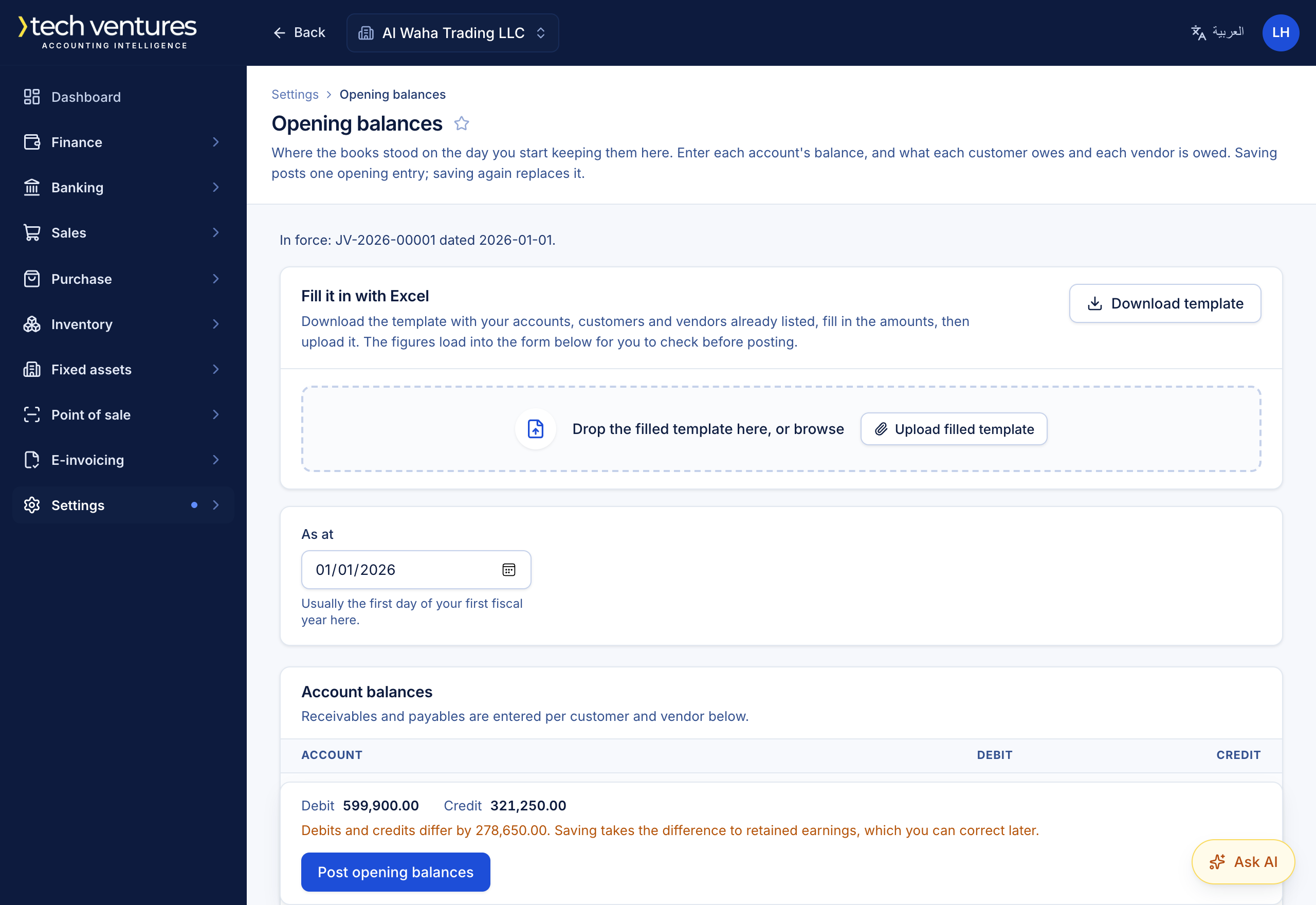
- Go to Settings › Opening balances.
- Set As at: usually the first day of your first fiscal year here.
- Under Account balances, enter each account's balance in Debit or Credit. Receivables and payables are not entered here: they come from the customer and vendor tables below.
- Under Customer balances, enter what each customer owed you on that day.
- Under Vendor balances, enter what you owed each vendor on that day.
- Check Totals. Debits equal credits. means the entry balances.
- Choose Post opening balances.
The page then shows the entry in force, its number and date.
Fill it in with Excel
For a long chart, use the template instead of typing:
- Under Fill it in with Excel, choose Download template. It lists your accounts, customers and vendors, with an instructions sheet.
- Fill in the amounts in your base currency: Debit or Credit on the Accounts sheet, the amount owed on the Customers and Vendors sheets. Rows are matched by Code; do not change the codes.
- Choose Upload filled template (or drag the file onto the box). The figures load into the form for you to check.
- Check them, then choose Post opening balances.
Rows the upload cannot use (an unknown code, an amount that is not a number, a negative amount, a row with both a debit and a credit) are skipped and listed under Some rows were skipped:.
Fields
| Field | What to enter |
|---|---|
| As at | The opening date. The entry is dated this day. |
| Account balances | Each account's debit or credit balance, in the base currency. |
| Customer balances | What each customer owed you. These go to receivables and appear on their statements. |
| Vendor balances | What you owed each vendor. These go to payables. |
What it posts
One journal entry, narrated Opening balances. For example:
| Account | Debit | Credit |
|---|---|---|
| Bank | 120,000.00 | |
| Accounts receivable (each customer on its own line) | 35,000.00 | |
| Accounts payable (each vendor on its own line) | 18,000.00 | |
| Share capital | 100,000.00 | |
| Retained earnings | 37,000.00 |
Each customer and vendor line carries that customer or vendor, which is what puts their opening balance in the customer and vendor ledgers and on their statements.
If debits and credits do not agree, the page says by how much, and posting takes the difference to retained earnings on a line named Opening balance difference. Find and correct the cause, then post again.
Correct them
Change any figure on the page and choose Post opening balances again. The entry in force is reversed and a new one is posted in its place, so the history of every change stays in the journal.
Important
Opening balances are a posted entry like any other: an opening date in a closed period is refused. Reopen the period first, or choose a date in an open one.
Related reports
- Trial balance: check it at the opening date against your old system.
- Receivables ageing and Payables ageing.
Related articles
- Import customers, vendors, items and balancesBring customers, vendors, items, accounts, cost centres, projects, locations and draft documents across from CSV files, and opening balances from Excel.
- Chart of accountsReview the UAE chart your company starts with, add accounts and headings, and understand which accounts the system posts to by itself.
- Accounting periodsHow the fiscal year and its twelve monthly periods control what can be posted, and how to open a new year, close a month and reopen one.
- Trial balanceEvery account with a balance on one page, as a net debit or credit, with the proof that the books add up and a link from each figure to its ledger.