
Sent e-invoices
Follow every e-invoice you sent, from submission to the buyer's Access Point and the FTA, and open its XML and status trail.
Sent lists the e-invoice behind every sales invoice and sales credit note that has been through e-invoicing. Open it from VAT › E-invoicing › Sent, or E-invoicing › Sent in a company without the Finance module. Each row opens the e-invoice, with its answers, its status trail and its XML.
The list
| Column | What it shows |
|---|---|
| Invoice | The document number. Opens the e-invoice. |
| Type | Tax invoice, tax credit note, commercial invoice or commercial credit note. |
| Counterparty | The customer. |
| Issued | The document date. |
| Status | Where the e-invoice stands (see below). |
| Total | The document total in its currency. |
| Buyer's Access Point | The verdict of the customer's provider, or Not known yet. |
| Federal Tax Authority | The FTA's verdict, or Not known yet. |
TIN, VAT, Currency, Network reference and Portal status are available from Columns. A tile on the E-invoicing dashboard opens this list already filtered; the filter is shown above the list with Show all to clear it.
Note
Not known yet means the answer has not arrived. It never means accepted.
Statuses
| Status | Meaning |
|---|---|
| Validated | The portal checked it and found nothing wrong. Not filed yet. |
| Not accepted by the portal | The portal's validation found problems. The document was not posted. |
| Submission in progress | The portal holds it and is submitting it. The page checks again by itself. |
| Submitted | Submitted. The buyer's Access Point and the FTA answer later. |
| Submission failed | The portal could not submit it. It can be resubmitted with the same number. |
| Rejected | Refused. This is final; correct it with a credit note. |
| Cancelled — reversed | The document was reversed in the books. Nothing was withdrawn from the Access Point. |
The e-invoice page
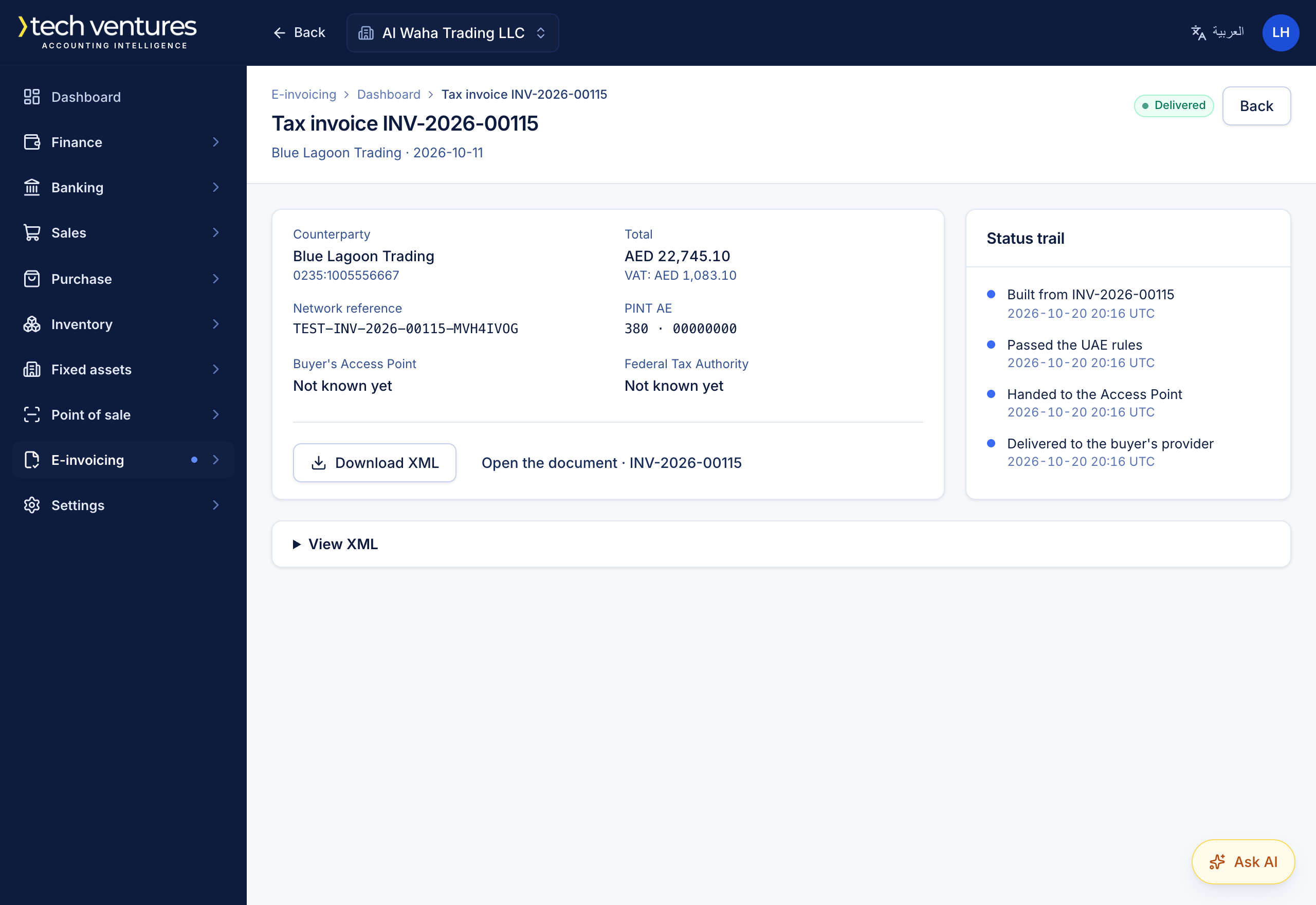
- Counterparty with the customer's Peppol address, Total and VAT.
- Network reference — the portal's reference for the filing — and Portal status, the portal's own word for where it stands.
- Invoice type and Transaction type.
- Buyer's Access Point and Federal Tax Authority, each with any detail they gave.
- Status trail — every step with its time in UTC: built from the document, validated by the portal, accepted by the portal, submitted, and any refusal with its reason.
- View XML shows the PINT AE document; Download XML saves it.
- Open the document goes back to the sales invoice or credit note.
The buttons that appear depend on the status, and need the Accountant role:
| Button | When it appears |
|---|---|
| Check now | Submission in progress or Submitted: asks the portal for the latest answers. |
| Resubmit invoice | Submission failed on a posted document. Sends the same number again after you confirm. |
| Validate and send | A posted document the portal does not hold yet. |
| Rebuild from the document | Before the portal holds it: builds the e-invoice again from the document as it is now. |
How the status is kept up to date
After posting, the app asks the portal a few times in the first minute, then on the schedule set under Following a submission in Configure E-invoicing. Opening the document or the e-invoice also asks, and the portal tells the app when a submission completes.
Related articles
- Send an e-invoicePost a sales invoice or credit note through the e-invoicing portal, which validates and files it before the journal entry is written.
- Fix a rejected e-invoiceWhat to do when the portal will not accept an invoice, when a submission fails, and when an e-invoice is rejected for good.
- E-invoicing dashboardSee at a glance what was sent and received, what the buyer's Access Point and the FTA answered, and which e-invoices need you.
- E-invoicing reconciliationFind sales documents posted but not sent to the FTA, purchase invoices with no e-invoice, and received e-invoices not yet entered, and compare their VAT with the return.