
Ring up a sale
Build a basket at the till, apply discounts, take cash or card, and print the receipt — posting the sales invoice and its receipt together.
The till sells from your item list. You build a basket, take the money, and the sale is posted at once as an ordinary sales invoice, settled by a receipt for what was tendered. Nothing is left waiting to be posted later, and the invoice is a full tax invoice.
Before you start
- You have a till open. See Open and close a till.
- The items you sell exist with a sales price. Each brings its tax code, or your default sales tax code if it has none, and its income account.
- You hold the Sales role or higher.
Build the basket
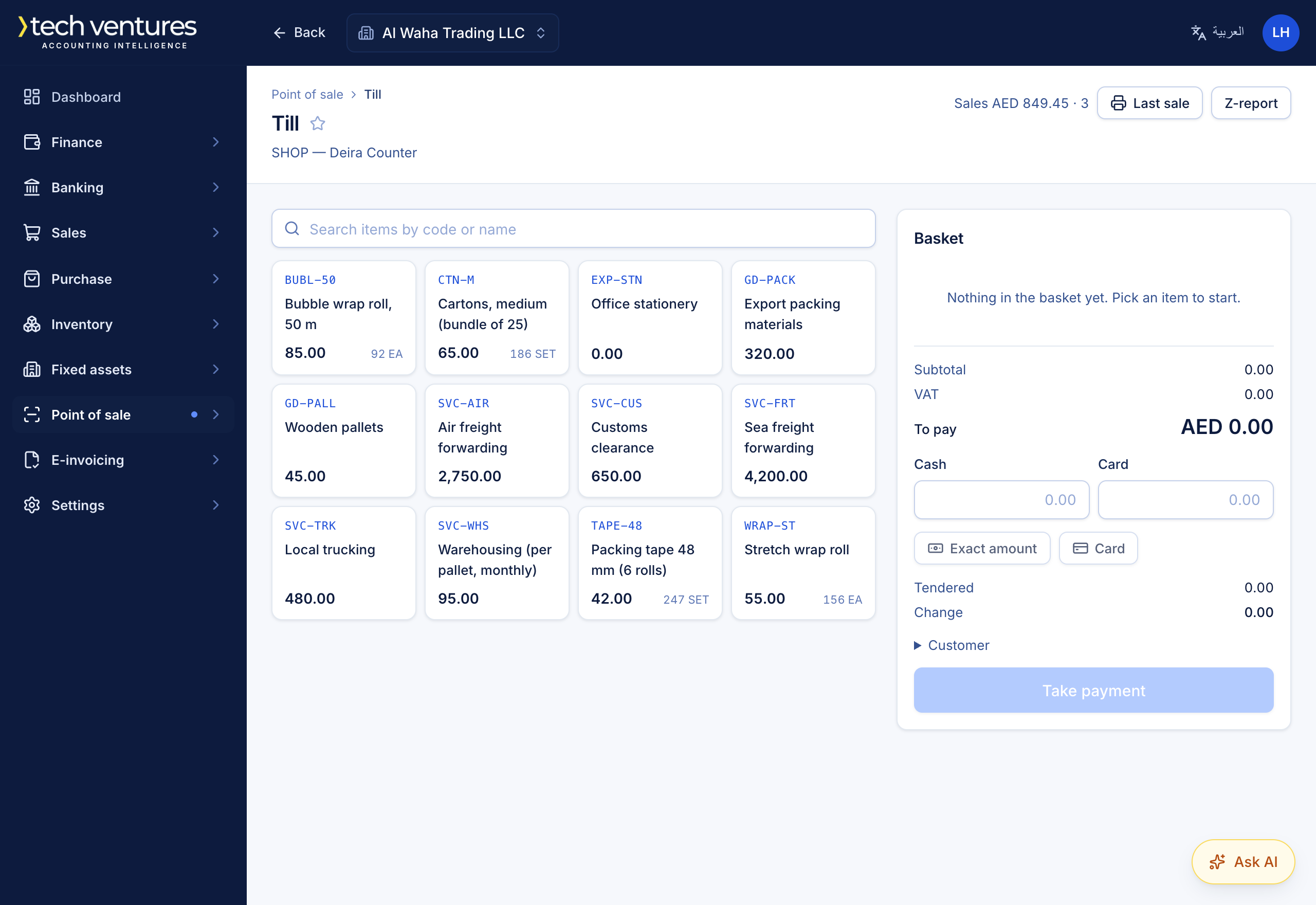
- Go to Point of sale › Till. The header shows the shop, and this shift's sales so far.
- Pick items from the grid, or type in Search items by code or name. With no search, the first 60 items show. A scanner works too: an exact code or barcode followed by Enter adds the item, as does Enter when only one item matches.
- The same item picked twice becomes one line with a quantity of two. Use the minus and plus buttons to change a quantity, and the bin to remove a line.
- To discount a single line, enter a percentage in its Discount % on this line box.
- To discount the whole basket, type a discount code in the Code box and press Enter, or enter a Basket discount % directly. A line with its own discount gets the basket discount on top of it.
- Check the Subtotal, VAT and To pay.
Stock items show how many the shop holds. An item with none in stock cannot be added, unless your inventory settings allow selling below zero.
Take payment
- Enter what is handed over in Cash, Card, or both. Exact amount puts the balance in cash; the quick buttons put in the next round note above the total; Card puts the whole total on card.
- Read Tendered and Change. If the money is short, the till says Short by and the amount.
- To put the sale in a named customer's name, open Customer and choose them; you can add a Note there too. Otherwise the sale goes to the counter customer.
- Choose Take payment and confirm.
The till shows the invoice number, the amount taken and the change to hand back, with Print the receipt.
Two rules protect the drawer:
- No short payments. A basket that is not fully paid is refused before anything is posted.
- Change comes from cash. The change can be no more than the cash handed over. A card payment of AED 100.00 for a AED 93.45 basket is refused, because there is no cash to give change from.
Hold a basket
Hold puts the basket aside so you can serve the next customer. Held baskets are listed above the basket with their number of lines and the time; Recall brings one back when the basket is empty, and the bin discards it. Held baskets are kept in this browser for this shift, not on the server, so they are not visible from another device. Clear the basket empties it without holding it.
The receipt
Print the receipt opens the receipt sized for an 80 mm thermal roll and opens the print dialogue. It shows your company's name and TRN, the lines with their VAT, VAT by rate, and how the sale was paid. A later reprint is marked as one.
From the receipt you can also open the Full A4 invoice, Send it by email, or print again with Print or PDF. From the till, Last sale reopens the most recent receipt.
Point of sale › Sales lists every till sale, newest first, with its number, date, customer, shop, total and status. The number opens its receipt.
What it posts
A basket of AED 89.00 plus 5% VAT, paid with AED 100.00 cash. The sales invoice:
| Account | Debit | Credit |
|---|---|---|
| Accounts Receivable (the counter customer) | 93.45 | |
| Sales income (from each item) | 89.00 | |
| VAT Output (Payable) | 4.45 |
For stock items, the invoice also posts their cost — debit Cost of Goods Sold, credit Inventory — and the goods leave the shop's location.
The receipt, for what stayed in the drawer — AED 100.00 less AED 6.55 change:
| Account | Debit | Credit |
|---|---|---|
| Cash drawer account | 93.45 | |
| Accounts Receivable (the counter customer) | 93.45 |
A split payment posts one receipt per account: cash to the cash drawer account, card to the card takings account. Change never touches the books — it was never the business's money.
Like any sales invoice, a till sale is handed to e-invoicing when it posts. If that step fails, the sale still stands.
Correct or cancel it
- The customer brings goods back: take a return against the sale.
- A sale rung up in error: it is a posted invoice and receipt. Reverse the receipt first, then the invoice, as you would for any paid sales invoice. A reversed sale drops out of the shift's Z-report.
Related articles
- Open and close a tillOpen a shift with the cash in the drawer, and at the end count the drawer and close it, posting any shortage or surplus to cash short or over.
- Take a return at the tillTake goods back against a till sale — a credit note is posted, the stock returns to the shop, and the refund is paid from this shift's drawer or card account.
- Discount codesSet up codes a cashier types at the till to take a percentage off the whole basket, with optional dates they are valid between.
- Create a sales invoiceBill a customer for goods or services, post it to receivables, income and VAT, and send it as a UAE e-invoice.