
Set up customers
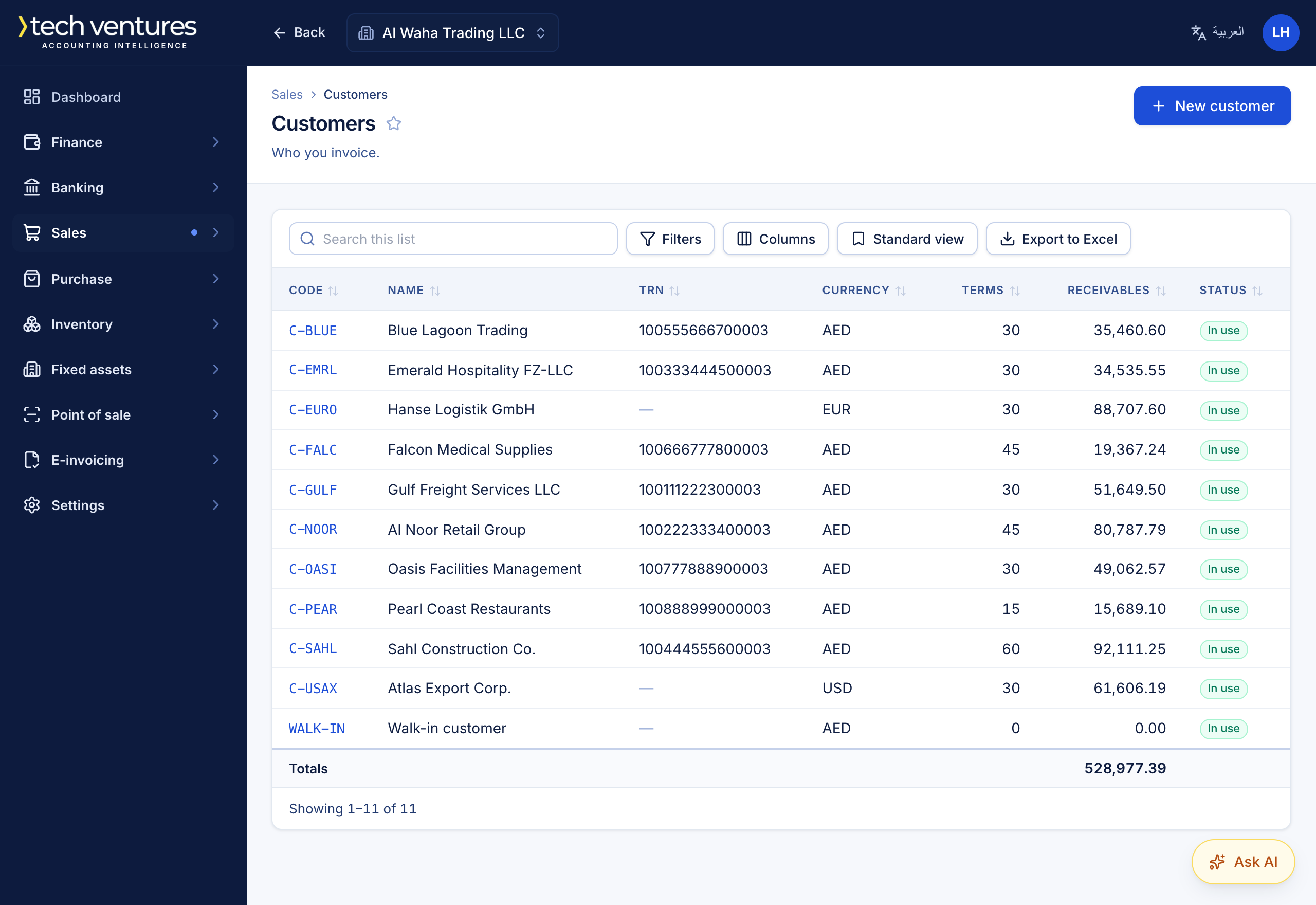
Add a customer with their TRN, terms, credit limit and e-invoicing details, and see what they owe at a glance.
A customer is anyone you invoice. Their record holds what every sales document needs to know about them — tax numbers, currency, payment terms, credit limit and how they receive e-invoices — so a new quotation or invoice fills itself in when you choose them.
Before you start
- Your payment terms and customer groups exist. New companies have a starting set.
- You hold the Owner, Admin, Accountant or Sales role to add or change a customer.
Add a customer
- Go to Sales › Customers and choose New customer.
- Enter the Name. The Code is filled from your number series; change it if you need to.
- For a VAT-registered customer, enter their 15-digit TRN. The TIN fills in from it if you leave it blank.
- Check Currency, Payment terms and Posting group. They start from your Sales settings and the LOCAL group.
- Fill in the address, Emirate and Country.
- Choose Create.
You can also add a customer without leaving a document: choose New customer in the customer list on a quotation, order or invoice. To bring many across at once, see Import data.
Fields
| Field | What to enter |
|---|---|
| Code | How you refer to them. Numbered automatically; change it or leave it. |
| Name | Their legal name, as it should print on invoices. Required. |
| TRN | Their 15-digit tax registration number. Blank if they are not VAT-registered. |
| TIN | The first ten digits of the TRN. Filled in from the TRN if left blank. Needed for e-invoicing. |
| Peppol address override | Only for special cases: an export to an unregistered buyer (9900000099) or a buyer outside the system (9900000098). |
| Trade licence number | Or their Emirates ID, passport or cabinet decision number. Sent with every e-invoice to them. |
| Registration type | What that number is: Trade licence, Emirates ID, Passport or Cabinet decision. |
| Licensing authority | Who issued the trade licence. Left blank, the emirate's economic department is assumed. |
| Default transaction type, Default invoice type, Default payment type | What a new sales invoice for them starts with in its e-invoicing section. Leave blank to choose on each invoice. |
| Where documents, statements and reminders are sent. | |
| Phone | Their main number. |
| Currency | The currency you invoice them in. Their documents start in it. |
| Payment terms | Their due dates are worked out from this term's days. |
| Posting group | Decides which receivable account their invoices and receipts post to. Fixed once they have postings. |
| Credit limit | The most they may owe. Leave blank for no limit. |
| Address | Street and building. |
| City (outside the UAE) | For a customer abroad. In the UAE the emirate is enough. |
| Emirate | For a UAE customer. |
| Country | Required. A customer outside the UAE has standard-rated lines start at the zero-rated code. |
| Notes | Anything worth knowing; not printed. |
| E-invoice | Yes: their invoices and credit notes go through e-invoicing. No: they are kept off it, whatever the invoice says, and left out of the e-invoicing reconciliation. |
| In use | Untick to stop offering them on new documents. They stay in the books. |
The credit limit
The limit is checked when an invoice is posted, not when it is saved. If what the customer owes in the ledger plus the new invoice would go over the limit, posting is refused with the figures. Take a receipt first, or raise the limit. Credit notes and receipts are never stopped by it.
Their record
Beside the details, a customer's record shows:
- At a glance — sales and money received this year, what is outstanding now and how much of it is overdue, and the credit limit.
- Contacts — the people to call and send documents to. Choose Add contact; tick the primary contact, to whom documents are addressed.
- Quick actions — Create quotation, Create sales invoice, Record a receipt, and under Inquiries, their Ledger and Statement of account.
- Prepayments held — shown when they have paid prepayments not yet deducted.
Remove a customer
Delete removes a customer only if nothing uses them. Once they have documents or postings, delete is refused: untick In use instead, and they stop appearing on new documents while their history stays in the books.
Related articles
- Customer groupsDecide which receivable account each customer's invoices and receipts post to, such as local and foreign customers kept apart.
- Payment termsSet the number of days customers and vendors have to pay, which decides every invoice's due date, the ageing and the reminders.
- Price listsGive customers their own prices, volume breaks and seasonal prices, picked up on a quotation, order or invoice line when you choose the item.
- Import customers, vendors, items and balancesBring customers, vendors, items, accounts, cost centres, projects, locations and draft documents across from CSV files, and opening balances from Excel.