
Find your way around
The menu, the top bar, menu search, the dashboard and its quick actions, lists and their views, and the screens that gather drafts and approvals in one place.
/appEvery page has the same frame: the menu down the side, a bar along the top, and the page itself. This article walks through each part.
The menu
The menu on the side holds one entry per module: Finance, Banking, VAT, Payroll, Sales, Purchase, Inventory and the rest, ending with Settings. Opening a module shows its screens in the same groups everywhere:
| Group | What is in it |
|---|---|
| Overview | The module's dashboard. |
| Transactions | The documents you enter: invoices, orders, vouchers, receipts. |
| Inquiries | Ledgers and registers that read what has been posted. |
| Masters | The records documents use: customers, vendors, items, accounts, banks. |
| Reports | The module's reports, and All reports, the full catalogue for that module. |
| Setup | The module's own settings, where it has any. |
You see only the modules your company has switched on and your role can reach. See Products and modules. Collapse menu at the foot of the menu shrinks it to icons, to give wide lists more room; on a phone, Open menu shows it.
The Settings menu gathers the setup for every module in one place: Company, Finance, VAT and e-invoicing, one group for each module, Data and Access and control.
The top bar
From left to right:
- Back returns to the page you came from.
- The company switcher shows which company's books you are in. Open it to see Your companies and move to another, or to Add a company. Your company logo shows beside it once you have uploaded one.
- Search the menu (Ctrl+K) finds any screen or report you can open by part of its name. Type "payment" and every screen with that word is offered; press Enter or click to open it. On a Mac, use Cmd+K.
- Need support sends a request to the Tech Ventures support desk. It carries your company, your role and the page you were on, so you do not have to explain them.
- During the trial, a badge shows how many days are left. It opens Plan and usage.
- Help and resources opens the guide For this screen where there is one, and the other help pages.
- The language button switches between English and العربية.
- Your photo or initials open the account menu: My profile and Sign out.
The dashboard
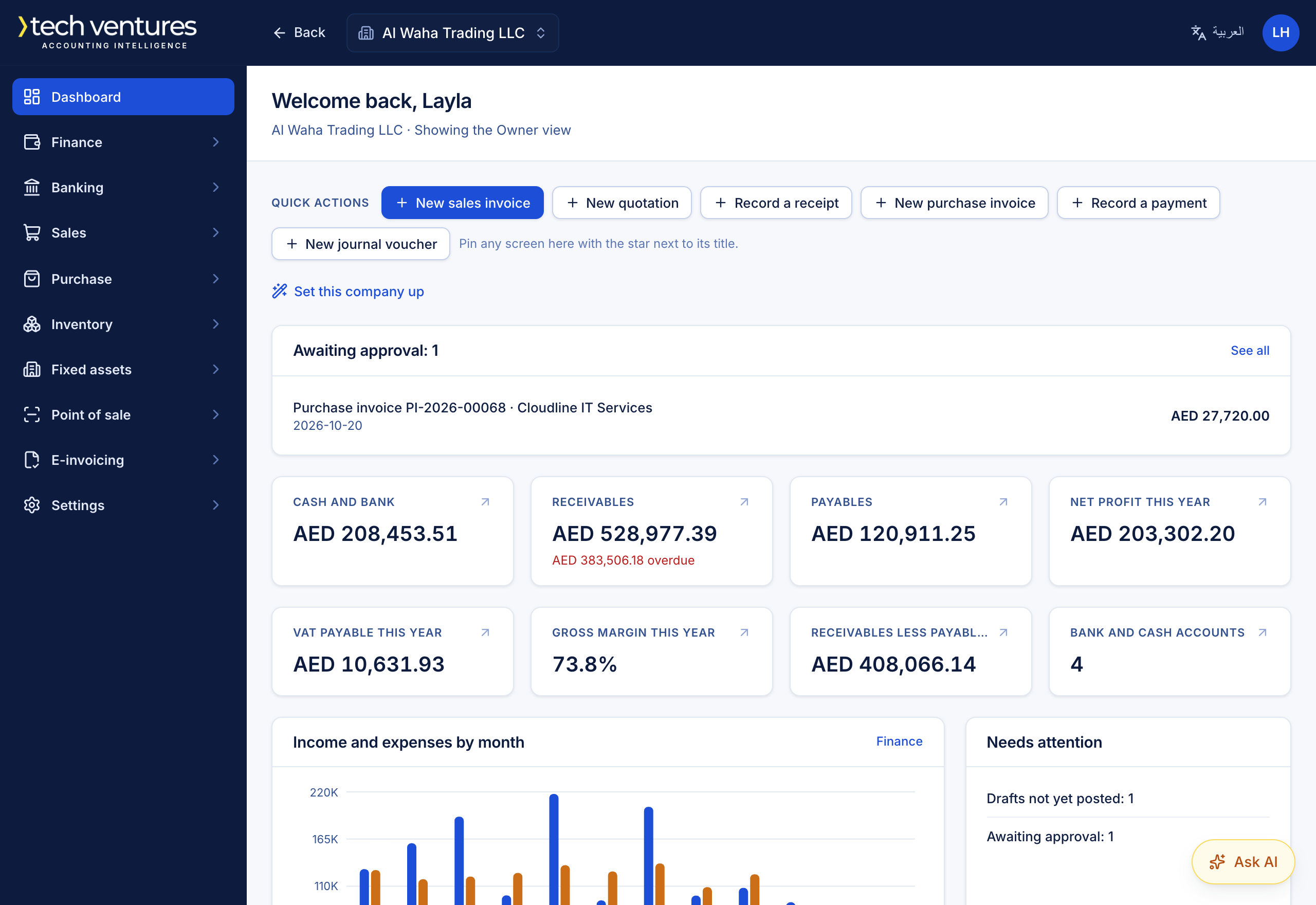
Choosing the logo, or Dashboard in the menu, opens your home page in the company you are in. What it puts first depends on your Role Center, which you choose on your profile.
- Quick actions across the top: shortcuts such as New sales invoice, Record a receipt and New journal voucher, offered to people who enter documents. Pin any other screen there with the star next to its title (Pin to quick actions); remove it again with the cross.
- Needs attention: drafts not yet posted, documents waiting for approval, and e-invoices with problems.
- The figures and charts for your Role Center: cash and bank, receivables, payables, profit, VAT, and the module's own lists.
- On a new company, the setup checklist, until every step is done or you hide it. See the first-week checklist.
Each module also has its own dashboard under Overview in its menu.
Drafts and approvals in one list
Two lists gather documents from every module:
- Drafts not yet posted lists every document you can post that is still a draft, whatever its kind. Open one to finish or post it. It opens from the unposted drafts count on your Role Center.
- Awaiting approval (Finance › Transactions) lists everything sent for approval. See Approvals inbox.
Lists
Lists of documents and records work the same way everywhere:
- Search this list narrows the rows as you type; Filters filters by any column, and Clear all removes the filters.
- Columns shows, hides and reorders columns; you can also drag a column heading.
- Save view keeps the filters and columns under a name. Open this view by default makes it the one the list opens with.
- Pivot groups the rows and totals them.
- Export to Excel downloads the list.
Click a row's number or name to open it.
Documents and posting
A quotation, invoice, bill or voucher is a draft until you post it. Posting writes the journal entry and locks the document; a mistake on a posted document is corrected by a reversal or a credit note, never by editing. Every report reads the same posted journal lines, so no two reports disagree. See How posting works.
Related articles
- Your profile, language and passwordSet your name, photo and contact details, choose the Role Center your dashboard opens with, switch between English and Arabic, and change your password.
- Approvals inboxSee every document waiting for approval in one list, whatever module it came from, and open each one to approve it or send it back.
- DashboardsYour home Dashboard and its Role Center, the counts of what is waiting, quick actions, favourite reports, and the dashboard each module opens with.