
Send an e-invoice
Post a sales invoice or credit note through the e-invoicing portal, which validates and files it before the journal entry is written.
When e-invoicing is on, you do not send an e-invoice as a separate step. You post the sales invoice or sales credit note, and posting does three things in order: the portal validates it, the portal accepts it for filing, and only then is it posted to the ledger. If the portal refuses it, nothing is posted and nothing is filed, so the books never hold an invoice the FTA does not.
Before you start
- E-invoicing is enabled and connected under Configure E-invoicing.
- Your company has its 15-digit TRN, its city and its 10-digit TIN.
- The customer has a TIN (or a Peppol address override for an export or a buyer outside the system), a city and country, an Emirate if they are in the UAE, a Trade licence number with its Registration type, and a Licensing authority for a trade licence.
- Each item with an E-invoice item type of Goods or Both has an HS code; Service or Both has a Service accounting code.
- Each exempt tax code has an Exemption reason code.
- The company has e-invoicing documents left. Each e-invoice sent uses one.
- You hold the Accountant role or higher to post.
Step by step
- Go to Sales › Sales invoices and choose New (or open a draft). For a credit note, use Sales credit notes.
- Fill in the invoice as usual: customer, date, lines and tax codes.
- In the E-invoicing section, check the values. They start from the customer; change any of them for this invoice:
- Send this document through e-invoicing — ticked for a customer set to receive e-invoices. Untick it for a B2C sale, a customer outside e-invoicing, or a special case: the document then posts normally and is never sent.
- Transaction type — Standard for most invoices; or Free Trade Zone, Deemed supply, Exports and the others when they apply.
- Invoice type — tax invoice or commercial invoice.
- Payment type — how the invoice is to be paid. A credit transfer also needs Payment account (IBAN), which is filled from Configure E-invoicing when the company holds one.
- Prepaid amount — money already received in advance and applied to this invoice. Leave it blank when there is none.
- Choose Save draft. The draft is checked with the portal as it saves. If the portal would refuse it, the reasons are listed on the draft's page, each with a Fix link to the invoice, customer, item or settings that needs changing. If all is well, it says Checked with the portal: ready to post.
- Choose Post (or Save and post on the form). The invoice is validated again, sent, and posted.
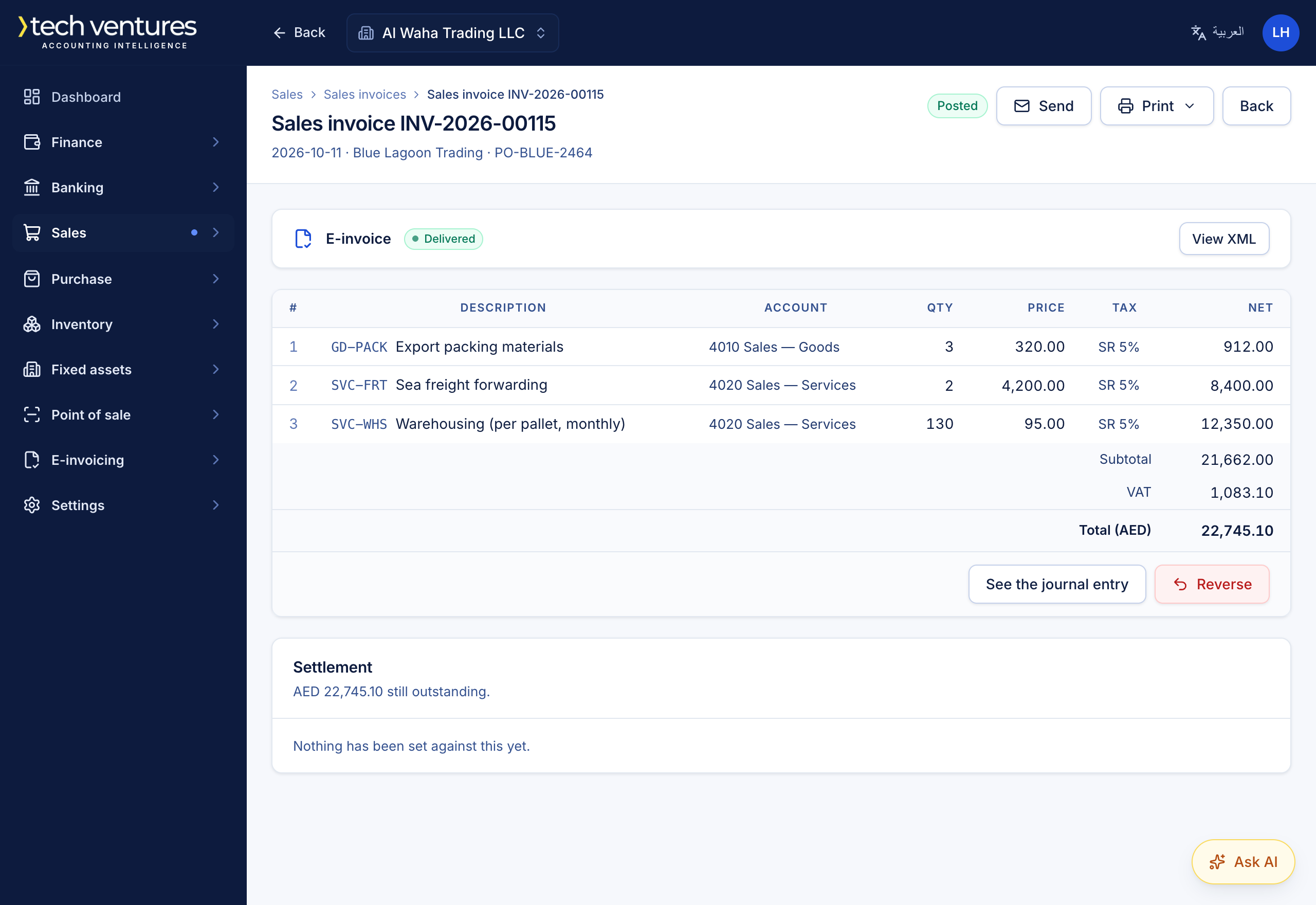
- The document's page now shows its E-invoice panel with the status Submission in progress, then Submitted. The page checks again by itself; Check now asks straight away.
Important
A credit note needs a Reason for the credit note, chosen in the E-invoicing section. It is required by PINT AE and cannot be added once the note is posted.
Fields
The E-invoicing section of a sales invoice or sales credit note:
| Field | What to enter |
|---|---|
| Send this document through e-invoicing | Ticked: validated and filed with the portal when posted. Unticked: posts normally and is never sent. Starts from the customer's E-invoice setting. |
| Transaction type | The kind of supply. Starts from the customer's Default transaction type. |
| Invoice type | Tax invoice or commercial invoice; tax credit note or commercial credit note on a credit note. A commercial (out-of-scope) document may carry only exempt or out-of-scope lines. |
| Payment type | Invoices only, and not on a deemed supply. Starts from the customer's Default payment type. |
| Payment account (IBAN) | Invoices only. Needed for a credit transfer. Taken from Configure E-invoicing when it holds an account. |
| Prepaid amount | Invoices only. An advance already received and applied to this invoice. |
| Reason for the credit note | Credit notes only, and required: the article of the VAT law the credit falls under, or a volume discount. |
What it posts
Exactly what the document posts without e-invoicing. For an invoice of AED 1,000.00 plus 5% VAT:
| Account | Debit | Credit |
|---|---|---|
| Accounts receivable (the customer) | 1,050.00 | |
| Sales income | 1,000.00 | |
| VAT output | 50.00 |
Sending the e-invoice posts nothing of its own. It uses one document from the company's e-invoicing balance.
When posting is refused
The message at the top of the page says why. Common reasons:
- The portal's validation found problems — listed one by one on the draft. Correct them and post again.
- The portal did not accept this company's API key — check it under Configure E-invoicing.
- The portal could not be reached or had too many requests this minute — post again. The same number is never filed twice.
- No e-invoicing documents left — buy a pack under Settings › Plan and usage, then post again.
If the portal accepted the invoice but the posting itself then failed (for example, the period was closed), the document stays a draft and the page says the portal already holds its number. Fix the cause and choose Post again: it posts without filing the number twice.
A document posted without being sent
A sales invoice posted before e-invoicing was switched on shows Not sent to the portal. on its E-invoice panel. Choose Rebuild from the document to build its e-invoice, then Validate and send. Nothing is posted again; the document is already in the books.
Correct or cancel it
A sent e-invoice cannot be edited, withdrawn or recalled. Issue a sales credit note against it, and a new invoice if needed; the credit note is sent the same way. See Fix a rejected e-invoice.
Note
A sales invoice or credit note whose e-invoice was sent to or delivered by the portal cannot be reversed. Its page shows a note in place of Reverse: This document has been filed through e-invoicing, so it cannot be reversed. To correct it, issue a credit note against it. An e-invoice that failed or was rejected does not stop a reversal.
Related articles
- Create a sales invoiceBill a customer for goods or services, post it to receivables, income and VAT, and send it as a UAE e-invoice.
- Create a sales credit noteReduce what a customer owes for goods returned or a charge reduced, reverse the income and VAT, and bring returned stock back.
- Sent e-invoicesFollow every e-invoice you sent, from submission to the buyer's Access Point and the FTA, and open its XML and status trail.
- Fix a rejected e-invoiceWhat to do when the portal will not accept an invoice, when a submission fails, and when an e-invoice is rejected for good.