
Create a company
Answer a few questions, enter the company's name, TRN, base currency and fiscal year, and get a working set of books with the UAE chart, tax codes and numbering.
A company is one set of books: its own chart of accounts, numbering, periods, people and settings. One sign-in can hold as many companies as you keep books for, and you move between them with the company switcher at the top of every page.
You create your first company straight after confirming your email address. To add another later, open the company switcher and choose Add a company.
Before you start
- The company's name, and if it is registered for VAT, its 15-digit TRN.
- The base currency the books are kept in, and the month its fiscal year starts. Choose these carefully: the company settings screen does not change them afterwards, because changing either would restate every figure in the books.
- A trial covers one company with books, plus one demo company. To add a second company with books, subscribe the first one under Settings › Plan and usage. E-invoicing-only companies do not count towards this limit.
Create the company
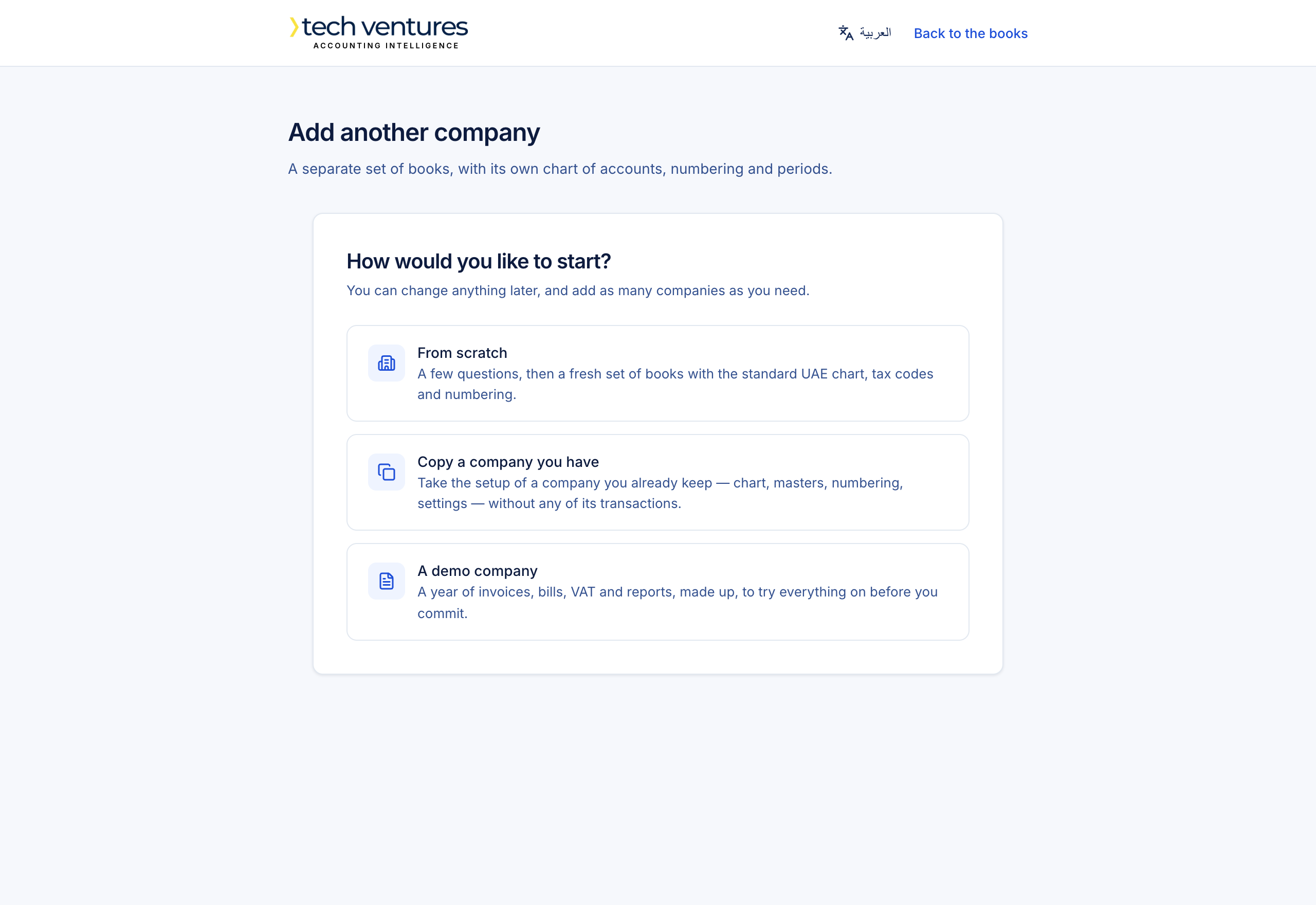
- On How would you like to start? choose From scratch. (The other choices are Copy a company you have, which starts from another company's setup, and A demo company. See Copy a company and Practise in a sample company.)
- Answer the questions. Each is one click, or press its number key:
- What do you need from us?: Accounting and e-invoicing or E-invoicing only. If you chose at sign-up, this is already answered and Back reaches it.
- Who are you?, How many companies will you keep books for?, What is the company's annual revenue? (this decides your e-invoicing deadlines) and Is the company registered for VAT?
- What does the business do? Pick the closest industry, type your own with Something else? Type it, or Skip.
- Shall we load a chart of accounts for you? (see the table below).
- What would you like to do first? Tick as many as you like, then Continue. These steps come first in the setup wizard.
- Where are the books kept today?
- On Company details and settings, fill in the fields below and choose Create company.
You land on the dashboard of the new company. A welcome card explains where everything is — among other things, that the search box at the top finds any screen by name (Ctrl+K, or ⌘K on a Mac), and that each list has its own search. It appears once for each person in each company. Then carry on with the setup wizard.
The chart of accounts choice
| Choice | What you get |
|---|---|
| Load the standard UAE chart | The full UAE chart, ready for VAT, end-of-service and trade-licence accounts. |
| Load the UAE chart for my industry | The standard chart plus accounts for the industry you picked. Offered only when you picked one of the listed industries. |
| I'll create my own chart | Only the headings and the essential accounts the system needs. Add the rest yourself or import them. |
Whichever you choose, you can add, rename and renumber accounts afterwards, and Default UAE configuration can fill in the standard setup later.
Fields
| Field | What to enter |
|---|---|
| Company name | Required. What you call it day to day; it shows in the company switcher. |
| Legal name | As it appears on the trade licence, if different. |
| TRN | 15 digits. Leave blank if the company is not registered for VAT; you can add it later. |
| Emirate | Where the company is registered. |
| Base currency | AED, USD, EUR, GBP or SAR. Every figure in the books is kept in it. |
| Fiscal year starts | The first month of the company's financial year. |
What it creates
Creating the company sets up, in one step:
- you as the company's Owner;
- the chart of accounts you chose, the UAE tax codes, the usual currencies, units and payment terms, and a default cost centre;
- the fiscal year containing today, with its twelve monthly periods;
- the numbering for every document type;
- today's Central Bank exchange rates, and those at the start of the year;
- a 30-day free trial, with its e-invoicing documents.
Nothing is posted. The books are empty until you enter opening balances or post a document.
An e-invoicing-only company
If you answer E-invoicing only, the questions about books are not asked. Instead you give the Billing information (who Tech Ventures invoices, asked once for all your e-invoicing companies) and then Your e-invoicing company: its name, legal name and TRN (required), trade licence number, licensing authority, address and emirate (required), email and phone. After Create company you are taken to activate the company on the e-invoicing portal. See Set up e-invoicing.
Correct or remove it
- A wrong name, TRN or address: change it under Company settings.
- The wrong base currency or fiscal year start: create a new company with the right ones. Copying the company does not help here: a copy keeps the same base currency and financial year.
- A company you no longer want: the owner can delete it.
Related articles
- Set up your company: the first-week checklistWork through the setup wizard from company details to your first posted sales invoice, in the order that gets the books right.
- Products and modulesThe two products you can choose, the modules each company can switch on or off, and which roles reach which modules.
- Copy a companyStart another company with this one's chart, masters, numbering and settings, and none of its transactions.
- Practise in a sample companyOpen a demo company with a year of made-up trading to try every screen, post anything and read real-looking reports, without touching your own books.